
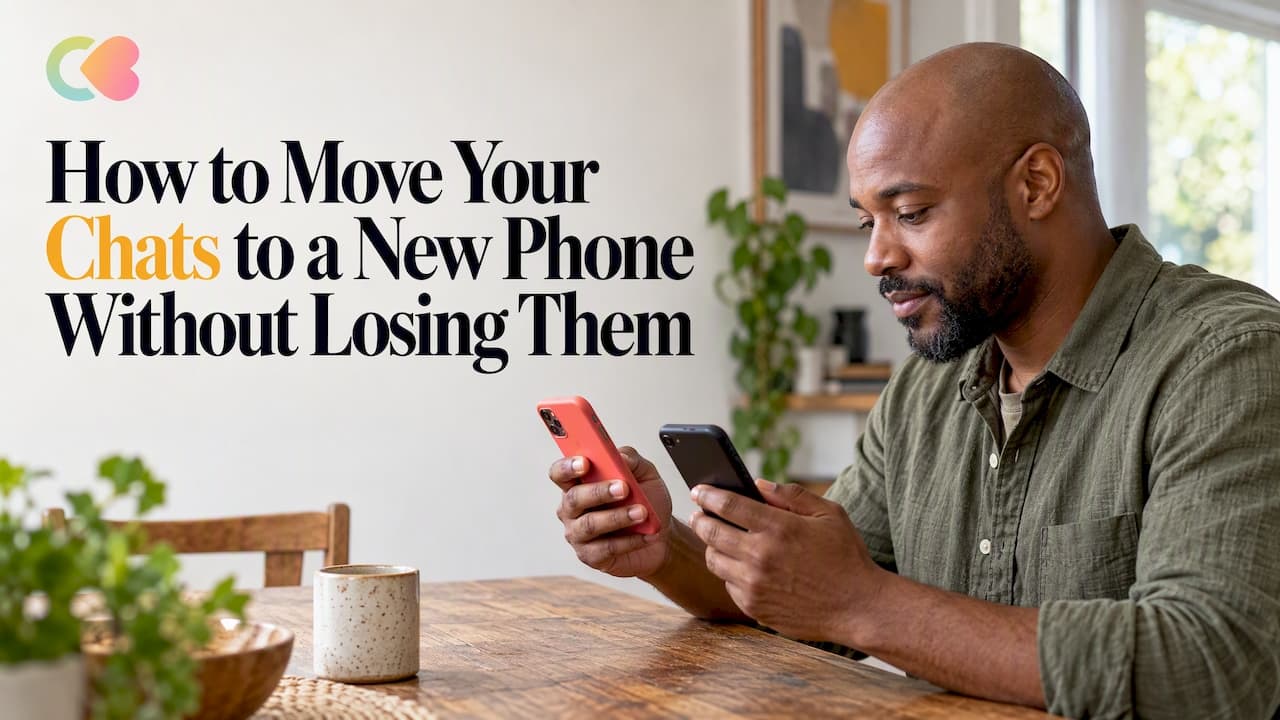
The safest way to move your chats to a new phone is to use the transfer or backup tool built into the messaging app, with the same phone number on both devices, before you wipe or trade in the old one. For WhatsApp, the app most people mean by this question, that tool is Chat Transfer for a direct phone-to-phone move, or a Google Account or iCloud backup for a restore. An exported chat is only a text file: it is good for keeping a record, but it cannot be loaded back into the app.
This guide walks through each route: Android to Android, iPhone to iPhone, and moving between the two platforms. It also covers what to check first, why transfers fail, and how to export a transcript you can save.
TL;DR
- Use the same phone number on the new phone, keep both phones plugged in and close together, and turn on Wi-Fi before you start.
- Android to Android and iPhone to iPhone can use WhatsApp's own chat transfer or a cloud backup. Switching platforms has its own official route, set up during the new phone's first-time setup.
- Restoring a backup replaces any new chats created on the new phone, so restore before you start using the app.
- An exported chat is a text file for reading and saving. It cannot be imported back into WhatsApp.
- Delete chats from the old phone only after you have confirmed everything arrived.
Table of Contents
- Before you move anything: a short checklist
- Transfer vs. backup vs. export: which one do you need?
- Moving chats from one Android phone to another
- Moving chats from one iPhone to another
- Switching between Android and iPhone
- What to do when a transfer fails
- How to export a chat and save the transcript
- After the move: clean up the old phone
- Our perspective: your conversations are worth protecting
- Starting fresh on the new phone
- FAQ
- Sources
Before you move anything: a short checklist
Most failed moves come from skipped basics, not from broken phones. Run through these first.
- Keep the same phone number. WhatsApp's own instructions for transferring chats between Android phones require the same number on both devices, along with both phones being close together, plugged into power and on Wi-Fi (WhatsApp Help Center).
- Charge both phones or plug them in. A transfer of years of photos and voice notes can take a while, and a phone that dies halfway is the most avoidable failure.
- Check storage on the new phone. For the Android-to-iPhone route, Apple says WhatsApp messages and media can move over if the content fits on the new device (Apple Support).
- Update the app on both phones. Older versions may not show the transfer option at all.
- Know your backup status. Open the chat settings and see when your last backup ran. If you plan to restore from the cloud, make a fresh one now.
- Changing your number too? Do it in the right order. WhatsApp warns that if you register a new number on the new phone without first changing numbers on the old phone, you will lose your chat history (WhatsApp Help Center).
One more thing worth knowing: WhatsApp says chat history is not stored on its servers. Your chats live on your phone and in any backup you create, or they move directly to another device (WhatsApp Help Center, German). That is why the order of steps matters so much: if the only copy is on the old phone and you reset it early, the chats are gone.
Transfer vs. backup vs. export: which one do you need?
Three different tools get called "moving chats," and they do different jobs.
| Method | What it does | Best for | Limits |
|---|---|---|---|
| Chat Transfer (phone to phone) | Sends your chats and media straight from the old device to the new one | Both phones in your hands at once | Same number, both phones close, powered and on Wi-Fi |
| Cloud backup and restore | Saves chats to a Google Account or iCloud, then restores them on the new phone | Old phone is not available, or you want a safety copy | Restoring replaces any new chats on the new phone |
| Export chat | Creates a text file of one conversation, with or without media | Keeping a record, sharing a conversation, legal or personal archives | Cannot be re-imported into WhatsApp |
If you can have both phones side by side, direct transfer is usually the simplest. If you can't, or you want insurance, back up first.
Moving chats from one Android phone to another
There are two official routes. WhatsApp lists a Chat Transfer feature for moving full chat and media history between Android phones (WhatsApp Help Center), and Google documents a backup-based process for new Android devices (Google Android Help).
Route 1: Chat Transfer, phone to phone
- On the old phone, open WhatsApp, then go to Settings, then Chats, then Transfer chats, and tap Start.
- On the new phone, install and open WhatsApp and verify your number.
- Scan the QR code the way the prompts direct you, and let the transfer finish with both phones staying close and powered.
The exact menu labels shift between app versions, so follow what your screen shows. The principle stays the same: start on the old phone, finish on the new one.
Route 2: Backup, then restore
- On the old phone, open WhatsApp, tap More, then Settings, then Chats, then Chat backup, and tap Back up.
- Set up the new phone and sign in to the same Google Account.
- Install WhatsApp, verify the same phone number, and choose to restore chat history when it is offered.
Google's guidance also says data migration apps outside the official process are not supported and may cause issues (Google Android Help). Skip third-party "transfer tools" that promise to do it faster.
Moving chats from one iPhone to another
For iPhone to iPhone, WhatsApp lists three approaches: an account transfer, a Google Account backup, and Chat Transfer (WhatsApp Help Center). In practice, most people will pick between a direct transfer and an iCloud restore.
Restoring from iCloud
WhatsApp's restore instructions for iPhone say that, with an existing iCloud backup, you uninstall and reinstall WhatsApp, verify the same phone number and Apple ID, and then choose Restore Chat History (WhatsApp Help Center).
Two practical points:
- The backup has to live somewhere with room. If your iCloud storage is nearly full, the backup may not complete, and some people look at options such as iCloud subscription sharing to get more space without paying for a full plan alone.
- Don't let the backup get stale. WhatsApp notes that after 365 days of inactivity your account is deleted, though an iCloud backup can still be used to restore your chat history by reinstalling the app (WhatsApp Help Center).
Direct transfer
On the old iPhone, open WhatsApp, tap your profile picture, then Chats, then the transfer option, and tap Start. Then open WhatsApp on the new iPhone, tap Agree and continue, and follow the prompts. Same rules apply: same number, both phones nearby and powered.
Switching between Android and iPhone
Cross-platform moves are the ones people dread, but both companies document an official path.
Android to iPhone
Apple says you can bring WhatsApp messages and media from Android to a new iPhone using the Move to iOS app (Apple Support). The process needs Wi-Fi turned on on the Android device and both devices plugged into power. Apple also notes that a USB-C cable can connect them directly for a faster transfer. Do this during the new iPhone's first-time setup, since that is when the migration option appears.

iPhone to Android
Android's own guide says you can move WhatsApp from an iPhone to a new Android phone during initial setup by choosing to copy apps and data, with a cable connecting the two devices (Android). According to the same page, this moves account information, individual and group chats, media and settings. It does not copy call history, peer-to-peer payment messages or statuses (Android).
If you rely on call logs or statuses, note down anything you need before you start.
Why you can't just restore an iCloud backup on Android
Cloud backups are platform-specific: iCloud for iPhone, Google Account for Android. That is the reason cross-platform moves go through the setup-time migration tools above rather than a simple restore.
What to do when a transfer fails
Transfers stall for ordinary reasons. Work through this list in order.
- Restart both phones. WhatsApp's guidance is to restart both devices, wait 30 seconds and try again (WhatsApp Help Center).
- Recheck the basics. Same number, both phones plugged in, Wi-Fi on, phones close together.
- Try the cable. For Android-to-iPhone moves, Apple says a USB-C cable can speed things up (Apple Support).
- Free up space. If the new phone is short on room, the content may not fit.
- Be patient with two-step verification. WhatsApp says it can add delays when you switch devices, as a security check that your account has not been compromised (WhatsApp Help Center).
- Don't start fresh chats first. WhatsApp says new chat history from the new phone can't be merged with the old history. Restoring a backup replaces any new chats created on the new device (Google Android Help). If you've already chatted on the new phone and the old chats matter more, you will lose the new ones by restoring.
How to export a chat and save the transcript
Exporting is a different job from moving. Use it when you want a readable copy of a conversation: for records, for sharing with someone, or for your own archive.
On WhatsApp, open the chat, tap More Options, choose Export Chat, and decide whether to include media. The result is a text file you can send by email or share through other apps (WhatsApp Help Center).
The catch is that an exported transcript is a plain text file, and it cannot be imported back into WhatsApp (WhatsApp Help Center). So it is a record, not a migration tool. If your goal is to see the same chats inside the app on the new phone, use transfer or backup and restore.
A few habits make exports more useful:
- Export the chats that matter before you reset the old phone, even if you plan to transfer too. It costs a minute and gives you a second copy.
- Name the files by contact and date, for example "Sam chat export," so you can find them later.
- Store them somewhere you control, such as an encrypted folder, since a transcript contains everything said in the conversation.
- Choose without media for a smaller, quicker file, and with media only when the photos or voice notes are part of what you want to keep.
After the move: clean up the old phone
Once the new phone shows all the chats you expect, check a few older conversations, a group chat and a thread with photos. Only then clean up the old one.
WhatsApp recommends deleting chats on the old device after a successful move so your private conversations stay secure (WhatsApp Help Center). If you're selling, trading in or giving the phone away, that step matters even more.
A sensible order:
- Confirm the chats, media and groups on the new phone.
- Make a fresh backup from the new phone so your safety copy is current.
- Sign out of the apps on the old phone and delete the chats.
- Reset the old phone only after all of that.
Our perspective: your conversations are worth protecting
At Chatr, we build an adults-only platform for AI chats, roleplay and storytelling on iOS and Android, so we think a lot about what a long-running conversation means to the person who has it. A thread is rarely just text. It is a story you built, a character you shaped, or a habit that became part of your day. Losing it to a rushed phone upgrade is a small but real loss.

What we'd tell any friend moving to a new phone comes down to three habits. Move first, wipe later. Keep one extra copy of anything you would hate to lose. And think about privacy at the end of the process as carefully as at the start: private conversations belong on devices you control, so clear out the old one once the new one is confirmed.
We also believe adults should be able to keep personal, creative conversations private. The same goes for any app that holds them: when you move to a new phone, check the app's own settings and help pages for what account sign-in and data options it offers, rather than assuming every app works like WhatsApp.
— Chatr Team
Starting fresh on the new phone
Sometimes a new phone is also a chance to begin again. If you enjoy interactive stories and character chats, we built Chatr for adults who want personalized roleplay and storytelling with virtual characters. You can create your own AI character and set up a new scene on your new phone in minutes. Chatr is available on iOS and Android.
FAQ
Can I move my WhatsApp chats to a new phone with a different number?
Yes, but the order matters. WhatsApp says that if you register the new number on the new phone without first changing numbers on the old phone, you lose your chat history (WhatsApp Help Center). Use the change-number feature on the old phone first, then move your chats. Chat Transfer between Android phones also requires the same number on both devices, so plan the number change and the move as separate steps.
Can I import an exported chat into WhatsApp on my new phone?
No. The export is a text file, and WhatsApp states it cannot be re-imported into the app (WhatsApp Help Center). Use it as a readable archive. To see the chats in the app itself, use Chat Transfer or restore from a Google Account or iCloud backup.
Will chats I started on the new phone be lost if I restore a backup?
Yes. WhatsApp says new chat history cannot be merged with the old history, and restoring a backup replaces any new chats created on the new device (Google Android Help). If those new chats matter, export them first.
Is it safe to use a third-party app to transfer chats?
We'd stay with the official routes. For new Android devices, WhatsApp says migration apps outside the official process are not supported and may cause issues (Google Android Help). Your chats are private, and an unofficial tool adds risk for little benefit.
What should I do if the transfer keeps failing?
Restart both phones, wait 30 seconds and try again, and confirm both are plugged in, on Wi-Fi and close together (WhatsApp Help Center). If two-step verification is on, allow extra time. If it still fails, fall back to a cloud backup and restore.
Sources
- How to transfer your chat history | WhatsApp Help Center
- About changing phones | WhatsApp Help Center
- About changing phones, iPhone options | WhatsApp Help Center
- How to restore your chat history | WhatsApp Help Center
- How to export your chat history | WhatsApp Help Center
- Chats sichern oder wiederherstellen | WhatsApp-Hilfebereich
- Transfer WhatsApp data to a new Android | Google Android Help
- Move from Android to iPhone or iPad | Apple Support
- Transfer WhatsApp and Text Messages to Your New Phone | Android
- iCloud subscription sharing